Platform reality check
Drawquarium on Steam Deck: Playable, controls and performance
Valve says Playable, the developer still says unofficial, and the editor wants a cursor. All three can be true. Here is how to make a Deck session work.
Steam now gives Drawquarium a Playable compatibility badge. That is a change from the pre-launch “Unknown” status. The developer’s FAQ still says Linux and Steam Deck are not officially supported. The practical reading: Valve tested the Windows build on Deck and found it usable, but the developer has not promised support.
What Playable means
| Signal | Reading |
|---|---|
| Steam Deck badge | Playable |
| Developer support | Still calls Deck/Linux unofficial |
| Linux build | No native build; Proton |
| Player report | Runs on Linux Mint |
| Wallpaper Mode | Not the intended Deck use case |
Controls and trackpads
Drawquarium’s editor is cursor-driven. Steam lists a “Mouse Only Option” in its accessibility features, and no full controller support badge is shown. On Deck, the right trackpad is your mouse; the left trackpad can scroll or act as a radial menu. The touchscreen also works for tapping UI.
- Right trackpad: precise cursor movement for drawing and menus.
- Left trackpad: scroll/zoom or a custom Steam Input radial menu.
- Touchscreen: useful for large buttons, less so for fine lines.
- External mouse/tablet: the most comfortable option for detailed fish.
- Steam Input: you can remap buttons per game; test before a long session.
Performance settings
The listed baseline is a GTX 1060 / RX 580 desktop card, so the Deck is below the official GPU target. It can still run the game, but do not expect max settings. Start with:
- Native 1280×800 resolution, windowed or borderless.
- Lower shadows, reflections and caustics before dropping resolution.
- Cap the frame rate in the Deck’s quick menu if the fan is loud.
- Close background downloads and other GPU-heavy apps.
- Test the demo before buying if performance is your main concern.
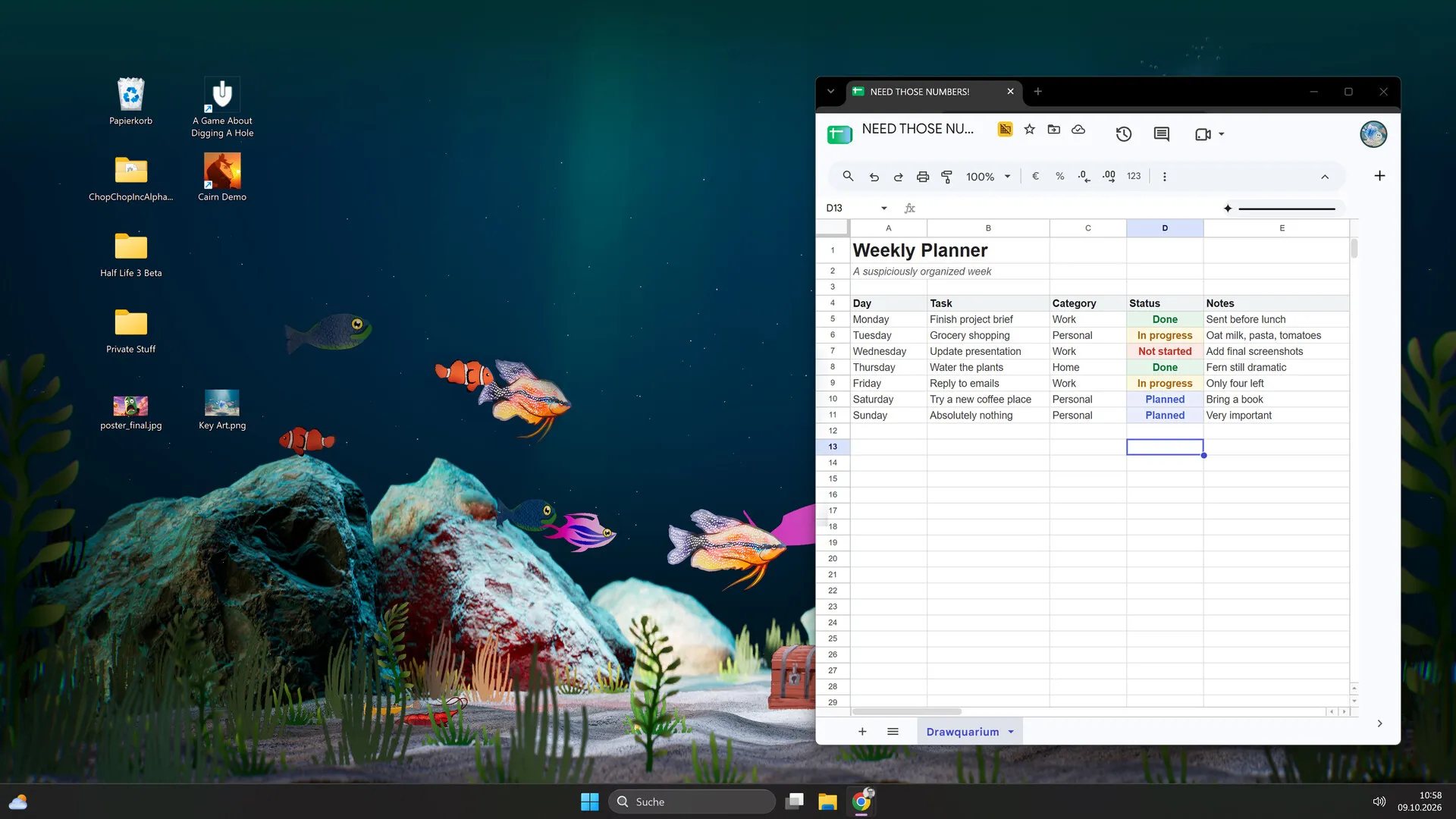
Wallpaper Mode on Deck
Wallpaper Mode is designed for a Windows desktop. On Deck, it is not the intended use case. You can test it in desktop mode, but the desktop layer, Sleep Mode and multi-monitor behavior were not designed around a handheld. Buy for the tank, not for the wallpaper, if Deck is your main device.
Install and storage
The store lists 700 MB of available space. Install from Steam in Game Mode or Desktop Mode. If the game does not launch, try Proton Experimental or a recent Proton version, then verify the files. A launch-day player reports it working on Linux Mint, which is consistent with Proton working, but not a guarantee for every Deck configuration.
Steam Deck FAQ
Is Drawquarium Playable on Steam Deck?
Yes. Steam now badges the game Playable. The developer FAQ still says Linux and Steam Deck are not officially supported, so treat the badge as Valve’s test result rather than a developer guarantee.
Can you draw on Steam Deck?
The editor is built around a cursor. On Deck, use the trackpads for precision; the touchscreen can also work. A stylus is not required, but fine detail is easier with a trackpad or an external mouse/tablet.
Does Drawquarium run on Linux?
There is no native Linux build. Steam Deck runs the Windows build through Proton, and a launch-day player reports it running on Linux Mint. That is a player report, not official support.
Does Wallpaper Mode work on Steam Deck?
Wallpaper Mode is a Windows desktop feature. On Deck it is not the intended use case; test it in desktop mode if you are curious, but do not buy for that feature alone.
How much storage does it need?
The store lists 700 MB of available space. That is small for a Deck game; an SD card is fine.
Advertisement
Sources for this page
Checked November 16, 2026Listed claims on this page were checked against the records below. If a detail is not in these records, it is labelled as unconfirmed rather than presented as fact.
- 01 Drawquarium on Steam — Valve / byKaleb / rokaplay
Store description, release date, languages, features, requirements, tags, bundles and platform list. Checked November 16, 2026: released November 13; $9.59 with a 20% introductory offer ending November 27; Steam Deck Playable; 17 screenshots; two trailers; eight bundles; Steam Cloud, Family Sharing and single-player listed; no achievements. The page shows Very Positive (325 reviews, 98% positive).
- 02 Drawquarium FAQ (developer thread) — rokaplay / Steam Community (developer)
Pinned November 10, 2026 FAQ, rechecked after launch: demo fish and aquariums carry over, no achievements yet, Linux/Steam Deck not officially supported, PNG import guidance (850×850 for a big fish), no layers, pressure settings, zoom and colour shortcuts, clone instead of rename, plants unlock from a ground fish, pause while drawing if it slows down, and how to leave feeding mode.
- 03 Drawquarium customer reviews on Steam — Steam Community
Review snapshots: launch evening (21:30 UTC, November 13) was Very Positive with 100% of 57 Steam-purchaser reviews positive. On November 16 the page showed Very Positive with 98% of 325 Steam-purchaser reviews positive, 359 total including key activations and 6 negative. Reviews describe PNG import, feeding behaviours, cleaning, breeding, moving fish between aquariums, performance and multi-monitor Wallpaper Mode.
- 04 Drawquarium is OUT NOW! — Kaleb Lechowski (Steam announcement)
November 13, 2026 launch post: confirms the release, repeats the advice to try the free demo first (especially on older hardware), and explains that Wallpaper Mode’s Sleep Mode lowers graphics quality on purpose and is adjustable in the Wallpaper menu.
Read how we classify evidence in our editorial policy.
Quick status