Drawing & creating
How to draw a fish in Drawquarium (and make it look good in the tank)
Drawquarium’s editor is generous, and that is the problem. Here is a workflow for making a fish that still reads as a character when it is small, moving and half-hidden behind a plant.
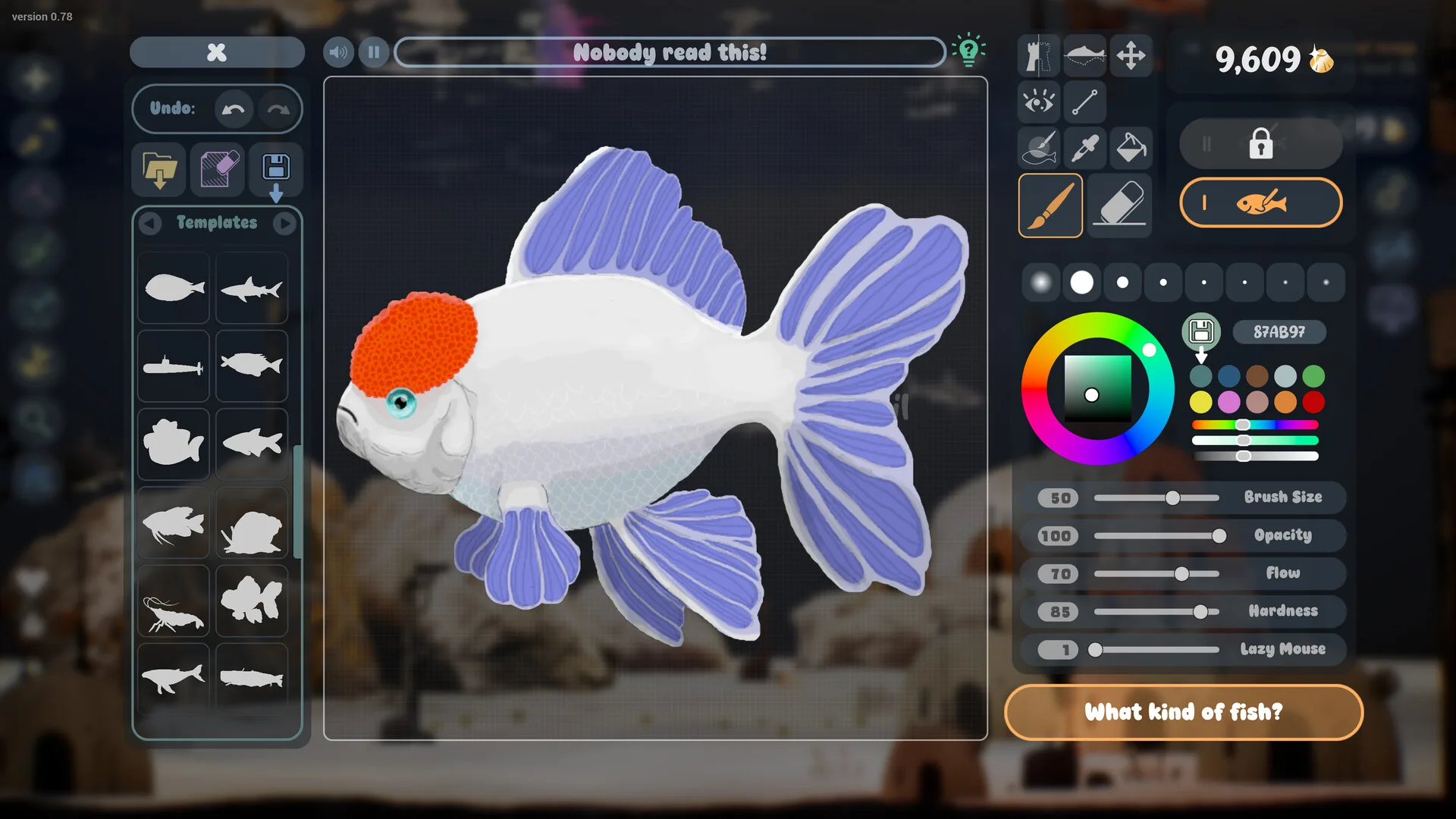
The official material confirms a long list of drawing tools, but it does not explain how to use them together. This guide is a practical workflow, not a reproduction of an in-game tutorial. Tools are described as they appear in the official screenshots and the developer’s September 2026 update notes; label placement may differ in your build.
What the editor includes
| Tool | What it does | Evidence |
|---|---|---|
| Body templates | Starting silhouettes for fish, plants and objects. | Official |
| Brush size, opacity, flow, hardness | Standard paint controls, visible in the editor screenshots. | Official |
| Lazy mouse | Smooths shaky strokes by trailing the cursor. | Official |
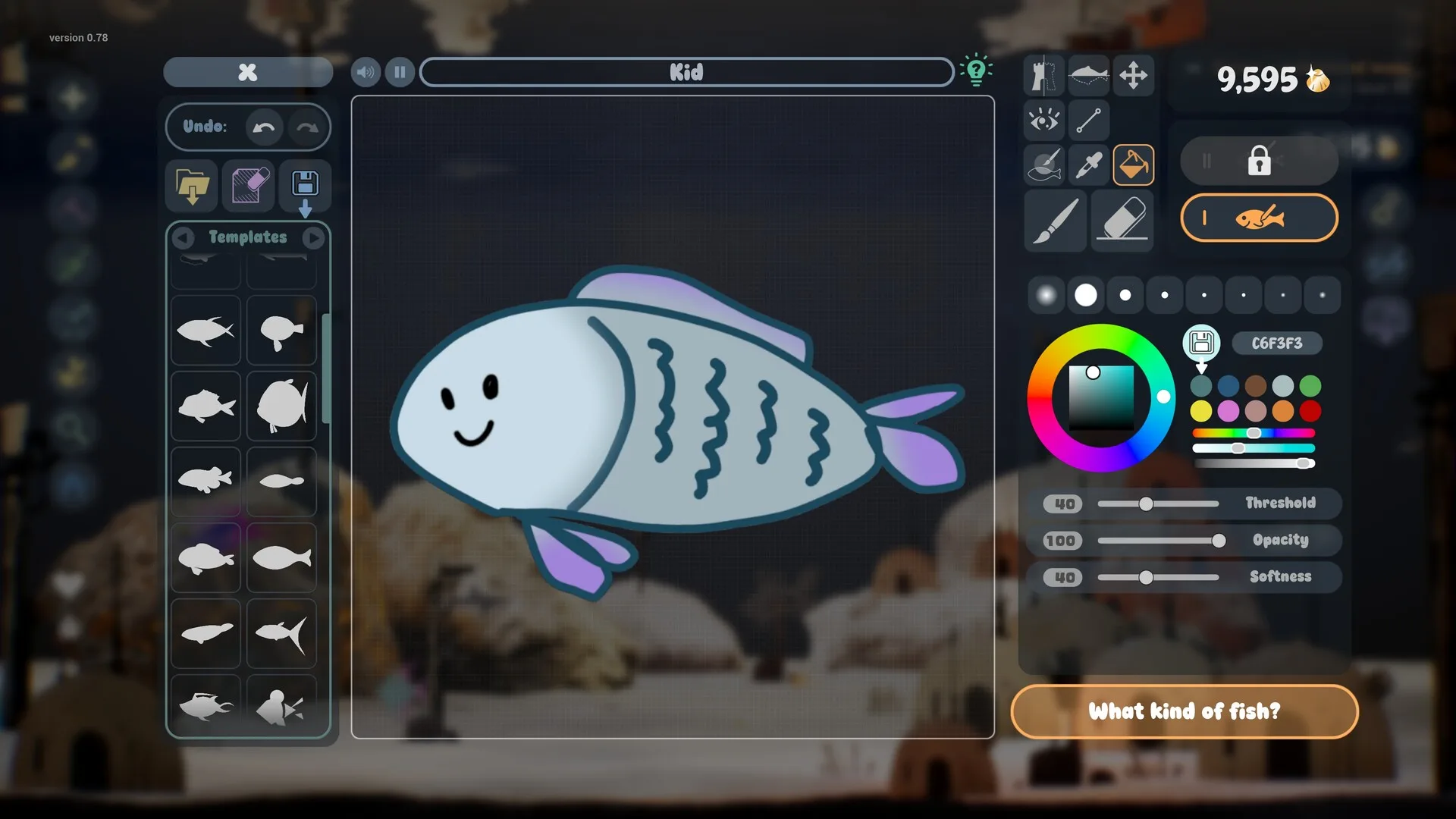
| Fill bucket with threshold and softness | Flood-fills an area; threshold controls how readily it crosses gaps. | Official |
| Eye, fin, texture and shape stamps | Ready-made parts you can place instead of drawing freehand. | Official |
| Saved colour palettes | Reusable swatches for a consistent tank palette. | Official |
| Zoom and undo/redo | Detailed work without losing the whole drawing to one bad stroke. | Official |
| Animation and size options | Different swimming animations, sizes and behaviours for fish. | Official |
| Bioluminescence layer | Makes parts of a fish or plant glow in the dark tank. | Official |
| Symmetry guides | Mirrors strokes across an axis. Seen in the public demo by players; not listed in the store bullet points. | Demo build |
Start with a silhouette, not a face
The strongest fish in Drawquarium are readable from across the room. That means the body shape has to do most of the work. Pick one of three starts:
- Template: fastest and most reliable. Choose a body close to what you want, then change colour, pattern and fins until it is yours.
- Freehand outline: better for weird creatures. Draw a closed body shape with a thick brush, fill it, then add fins and a tail as separate shapes.
- Imported PNG: best for a drawing made on paper or in another app. See the import section below.
Avoid starting with the eye. It is tempting because it makes the drawing feel alive immediately, but if the body changes later the face ends up in the wrong place. Draw the body, the tail and the main fin first. Place the eye when the silhouette is settled.
Brushes, fill and stamps
Brush settings
Size is the width of the stroke. Opacity is how transparent the paint is. Flow controls how much paint builds up as you hold the stroke. Hardness changes the edge from crisp to soft. Lazy mouse smooths the line by lagging behind the cursor; it is useful for long curves and for mouse users, less useful for quick dots and eyes.
For the body, use a large, hard brush at full opacity. For shading and glow, lower the opacity and hardness. There is no need to use every slider. Three settings — size, opacity and lazy mouse — cover most of the work.
Fill bucket
The fill tool has threshold and softness controls. A high threshold jumps across small gaps in the outline; a low threshold keeps the fill contained. If colour leaks into the background, undo and lower the threshold, or close the gap with the brush. Softness controls how blended the fill edge is.
Stamps
Stamps are the fastest way to add a professional-looking eye, fin or texture. The eye library includes several expressions and highlight styles. A single well-placed eye stamp can carry a fish that is otherwise a coloured blob. Use one accent texture on the body rather than five; patterns compete at tank scale.
Colour that survives the tank
The aquarium is blue, dark and full of moving plants. A fish needs to separate from that background. Three practical rules:
- Use one dominant hue. Orange, coral, lime, pale pink or cream will pop against the blue water. Dark blue and dark green disappear unless they glow.
- Add a light belly or edge. A lighter underside or rim makes the silhouette readable even when the fish turns away.
- Keep patterns large. Spots and stripes should be visible at a glance. Fine scales read as noise.
The saved palette is useful here. Pick four or five colours for the whole tank and reuse them across fish and plants. A tank with a shared palette looks designed; a tank with every colour looks like a sticker sheet.
Bioluminescence without a rave
Bioluminescent fish and plants are a confirmed feature. Glow works best when it is the brightest thing in a dark area, not when every object glows. Use it on one fish, or on a cluster of plants in the background, and keep the rest of the tank relatively muted. If everything glows, nothing stands out.
Glow also interacts with lighting. A tank with bright ambient light will wash out subtle glow; a dim tank with caustics gives it somewhere to live. The decoration guide covers lighting in more detail.
Importing a PNG
The store page confirms that any PNG can be imported and become part of the aquarium, including a child’s drawing. It does not publish a maximum resolution, a transparency requirement or a crop workflow. These are practical precautions, not official rules:
- Draw on white paper with strong outlines and flat colour.
- Photograph it flat in even daylight, with no shadow from your hand or phone.
- Crop close to the drawing, then remove the paper background if your image editor can do it. A transparent PNG usually composites more cleanly than a white rectangle.
- Keep the file modest — around 1000–2000 pixels on the long edge is plenty for a fish that will be displayed small.
- Import it, then check the edges in the tank. If the outline is too thin, redraw it thicker rather than fighting the import.
A 15-minute workflow
- 2 min: choose a template or draw a body silhouette. Do not add detail yet.
- 3 min: block in two or three colours. Check the squint test.
- 3 min: add the tail, fins and one pattern. Keep the pattern large.
- 2 min: place the eye stamp, then adjust its size. Add a mouth if the fish needs one.
- 2 min: choose an animation and size. Smaller fish read as juveniles; larger fish become focal points.
- 3 min: place it in the tank, zoom out, and fix only the problems you can actually see.
The editor autosaves drawings, and the September update added backup saves, so a crash should not erase the session. That is still not a reason to skip saving your source art outside the game.
What usually goes wrong
| Problem | Fix |
|---|---|
| Fill leaks outside the fish | Close the outline or lower the threshold; undo before repainting. |
| The fish looks flat | Add one darker underside or one lighter belly; avoid full-body gradients. |
| The eye looks wrong | Try a different stamp before redrawing the face; eye shape does most of the work. |
| The fish vanishes in the tank | Increase contrast against blue, thicken the outline, or add a glow accent. |
| The pattern is invisible | Make the shapes larger and reduce the number of colours. |
Unverified details
We have not confirmed a canvas size limit, a maximum number of saved palettes, the exact resolution of imported PNGs, or whether every fish can use every animation. Those details may be visible in the build you are playing; they are not in the public documentation we checked. This page will be updated when the released game can be tested directly.
Sources for this page
Accessed November 1, 2026Listed claims on this page were checked against the records below. If a detail is not in these records, it is labelled as unconfirmed rather than presented as fact.
- 01 Drawquarium on Steam — Valve / byKaleb / rokaplay
Store description, release date, languages, features, system requirements, tags and platform list.
- 02 Drawquarium has changed a LOT since the demo in May — Kaleb Lechowski (Steam announcement)
September 18, 2026 list of added and improved systems since the first demo.
- 03 Drawquarium is one of the most relaxing sandbox games I've played in a hot minute — PC Gamer
Hands-on feature published May 11, 2026. Used for impressions, not for unconfirmed mechanics.
- 04 Drawquarium lets you rear and grow your own terrible hand-drawn fish — GameSpew
October 31, 2026 preview.
Read how we classify evidence in our editorial policy.
Quick status