Drawing & creating
Drawquarium drawing tablet support: pressure, drivers and setup
Drawquarium’s editor is built around a cursor, but it does have pressure settings. A tablet can make the drawing loop much nicer — if Windows, the driver and the game agree on where the pen is.
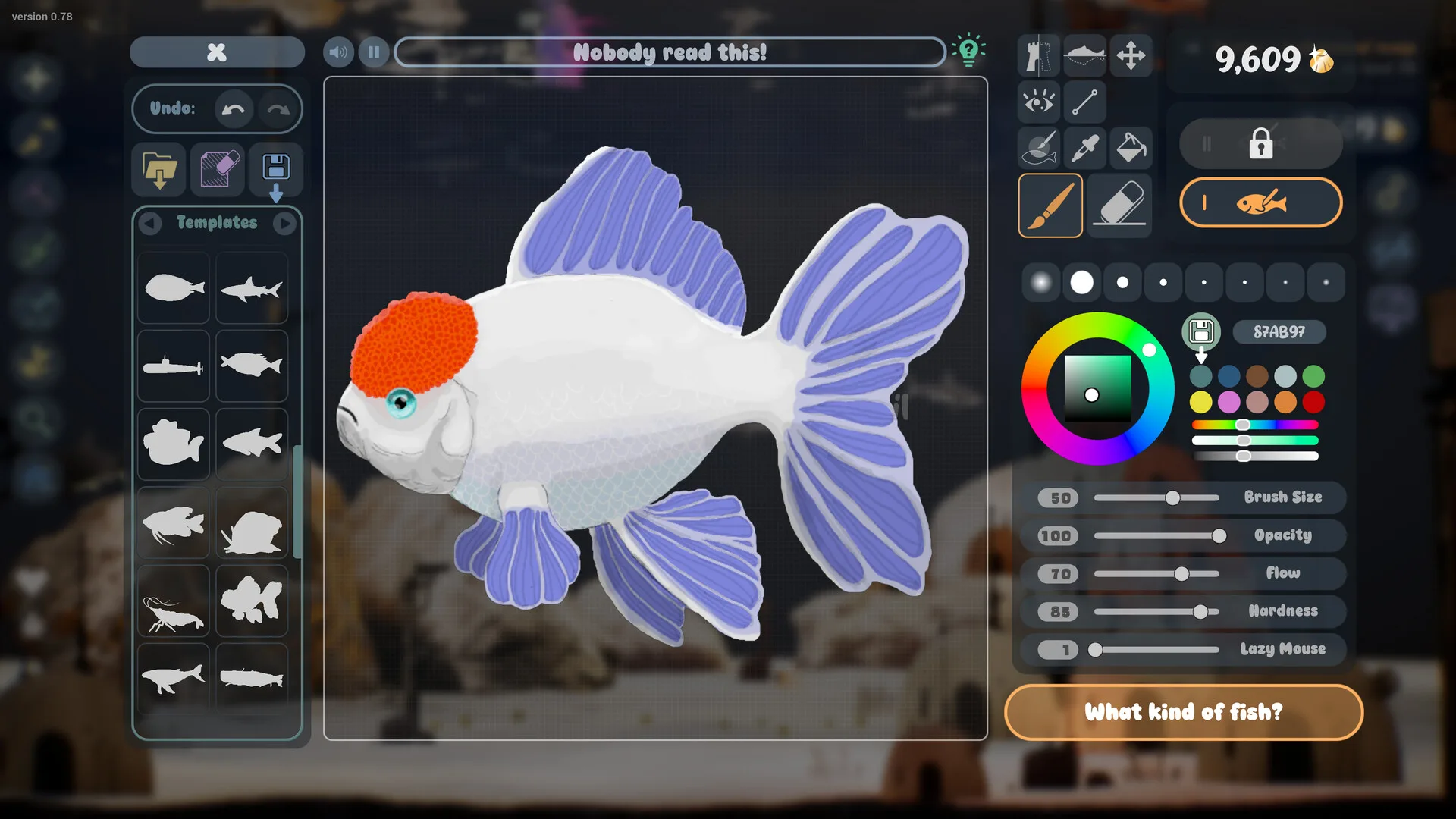
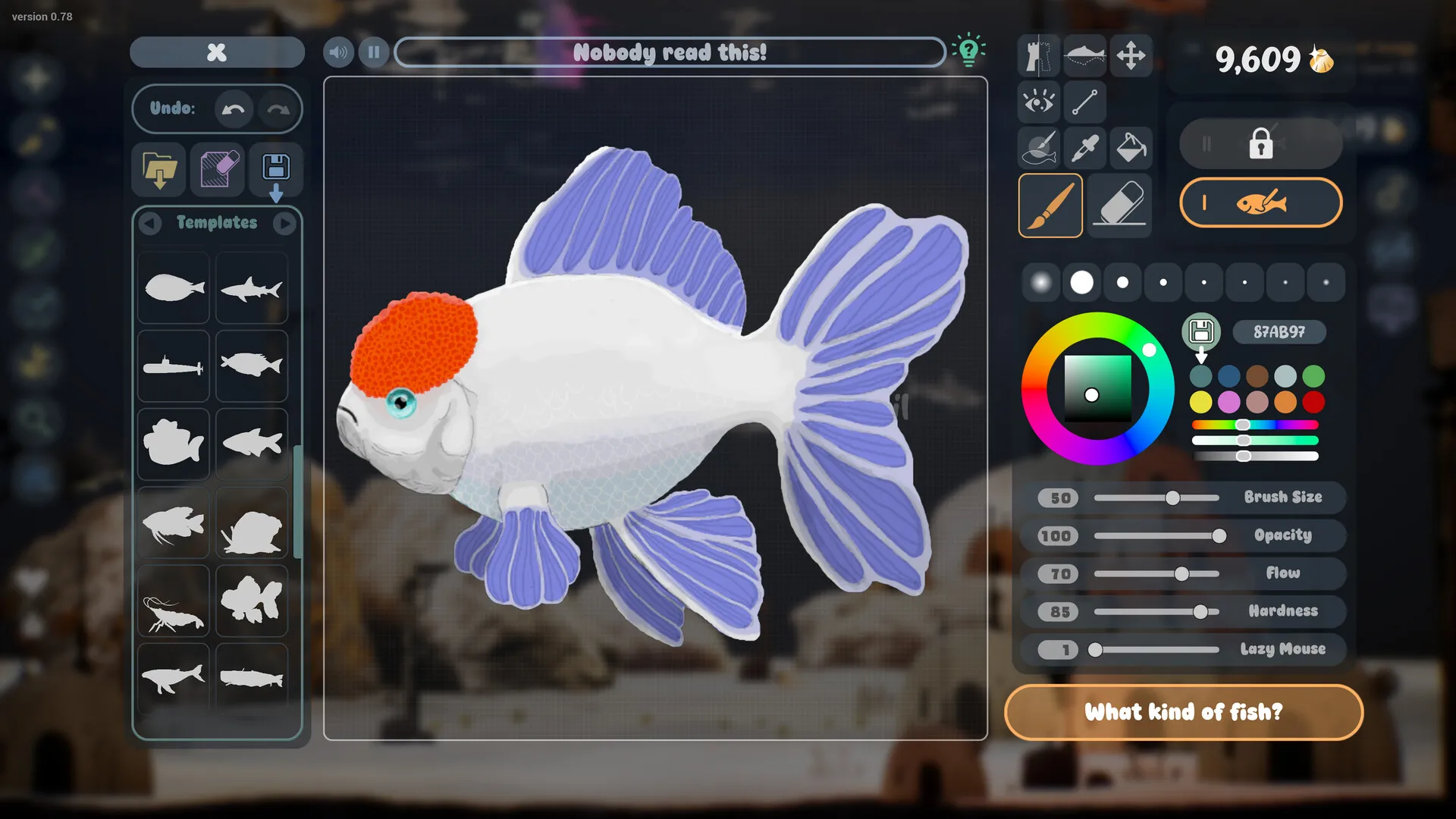
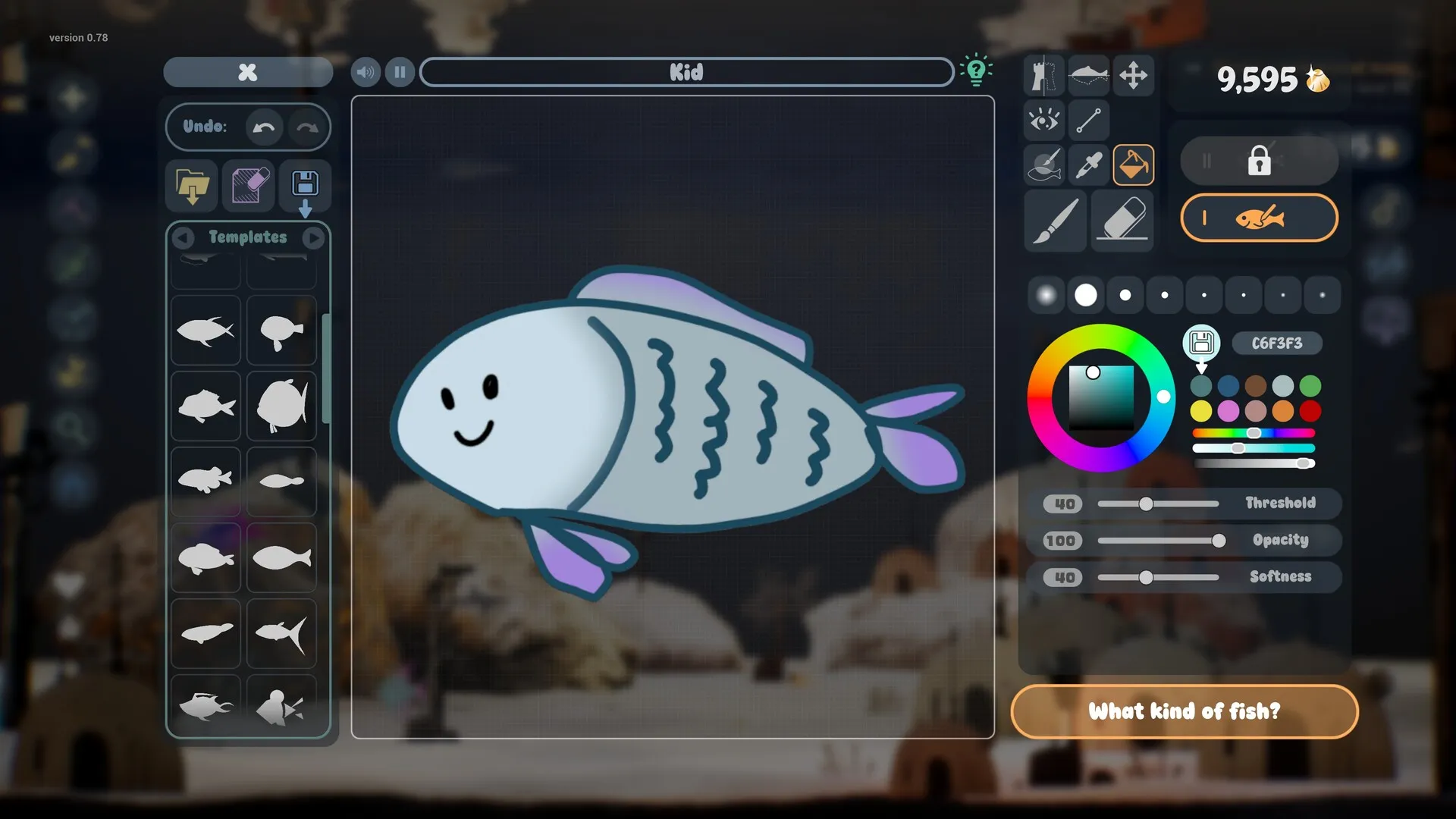
The short answer is: tablets are not officially certified, but pressure settings exist. The developer’s FAQ says there are pressure settings and that results depend on your tablet and driver. That is not the same as a supported-device list. Test the free demo before buying a tablet specifically for this game.
What is confirmed
| Question | Status |
|---|---|
| Pressure settings in the editor | Yes, per the developer FAQ |
| Official tablet compatibility list | Not published |
| Pen pressure results | Depend on tablet and driver |
| Mouse-only play | Works |
| Layers | No; use the masked brush |
Setup checklist
- Install the tablet driver from the manufacturer, not a generic Windows driver.
- Set the tablet to the correct monitor. On a multi-monitor PC, map it to the screen where Drawquarium opens.
- Match Windows display scaling. Mixed 100%/125%/150% scaling is a common cause of cursor offset.
- Enable Windows Ink if your driver offers it, then test pressure in the demo.
- Start in windowed mode at a normal resolution before trying fullscreen or Wallpaper Mode.
- Open the editor’s pressure settings and make one test stroke with light and heavy pressure.
Pressure and cursor
Pressure is most useful for shading, soft edges and tapered lines. The game’s body tools also use hardness and opacity, so pressure is a convenience, not the only way to get a soft line. If pressure does nothing, first check whether the tablet driver is in “mouse mode”; that disables pressure. Then check Windows Ink and the game’s pressure setting.
Cursor offset is a different problem. If the pen tip appears a few centimetres away from the brush, the tablet is mapped to a different resolution or monitor. Fix it in the driver, not in the game. Test with a single monitor and 100% scaling to isolate it.
Test it in the demo
Use the free demo for a 10-minute test before buying:
- Draw one fish with the pen at full pressure, then one with light pressure.
- Use the fill bucket and a masked brush stroke.
- Zoom in and out with the scroll wheel or pen buttons.
- Import a small transparent PNG and place it.
- Enable Wallpaper Mode once and confirm the pen still maps correctly when you return.
Tablet troubleshooting
- No pressure: disable mouse mode, enable Windows Ink, restart the game, and check the pressure setting.
- Cursor offset: map the tablet to the correct monitor and match display scaling.
- Pen buttons do nothing: bind them to left-click/right-click in the driver; the game does not document pen-button actions.
- Strokes skip: lower the polling rate or change USB port; avoid USB hubs during testing.
- Pressure works outside the game but not inside: try windowed mode, then a different driver version; report it with the tablet model.
- Wallpaper Mode breaks mapping: return to the game, check the tablet driver’s active app profile, and test with one monitor.
Tablet vs mouse
The game is fully usable with a mouse. A tablet is a comfort upgrade: long curves, tapered fins and soft shading are easier with pressure. If you mainly import PNGs or use templates, a tablet matters much less. If you plan to draw every fish by hand, test the demo with your tablet first — driver friction is the main risk, not the game’s tools.
Tablet FAQ
Does Drawquarium support drawing tablets?
The editor has pressure settings, and the developer’s FAQ discusses pen pressure. Results depend on the tablet and driver. There is no official compatibility list, so test the free demo before buying for tablet use.
Does pen pressure work in Drawquarium?
The developer says there are pressure settings and that results depend on your tablet and driver. If pressure is not recognised, check Windows Ink, the tablet driver and the game’s pressure option.
Can I use a tablet without a screen?
A pen tablet works like a mouse with pressure. A screen tablet is not required. The main issue is cursor mapping and driver compatibility, not the screen.
Why is my pen offset from the cursor?
This is usually a Windows display-scaling or tablet-mapping issue. Set the tablet to map to the correct monitor, match Windows scaling, and test in windowed mode before changing the game.
Can I draw with a mouse?
Yes. The editor is usable with a mouse. A tablet makes long curved lines and pressure-sensitive shading easier, but it is not required.
Advertisement
Sources for this page
Checked November 16, 2026Listed claims on this page were checked against the records below. If a detail is not in these records, it is labelled as unconfirmed rather than presented as fact.
- 01 Drawquarium FAQ (developer thread) — rokaplay / Steam Community (developer)
Pinned November 10, 2026 FAQ, rechecked after launch: demo fish and aquariums carry over, no achievements yet, Linux/Steam Deck not officially supported, PNG import guidance (850×850 for a big fish), no layers, pressure settings, zoom and colour shortcuts, clone instead of rename, plants unlock from a ground fish, pause while drawing if it slows down, and how to leave feeding mode.
- 02 Drawquarium on Steam — Valve / byKaleb / rokaplay
Store description, release date, languages, features, requirements, tags, bundles and platform list. Checked November 16, 2026: released November 13; $9.59 with a 20% introductory offer ending November 27; Steam Deck Playable; 17 screenshots; two trailers; eight bundles; Steam Cloud, Family Sharing and single-player listed; no achievements. The page shows Very Positive (325 reviews, 98% positive).
- 03 Drawquarium Demo on Steam — Valve / byKaleb / rokaplay
Demo listing, free status, demo-specific feature bullets, system requirements. On November 8 it showed Very Positive (96% of 91 reviews) and 14 interface languages.
- 04 Drawquarium customer reviews on Steam — Steam Community
Review snapshots: launch evening (21:30 UTC, November 13) was Very Positive with 100% of 57 Steam-purchaser reviews positive. On November 16 the page showed Very Positive with 98% of 325 Steam-purchaser reviews positive, 359 total including key activations and 6 negative. Reviews describe PNG import, feeding behaviours, cleaning, breeding, moving fish between aquariums, performance and multi-monitor Wallpaper Mode.
Read how we classify evidence in our editorial policy.
Quick status